Multi-factor authentication (MFA) adds an extra layer of security to your Divorcepath account. With MFA enabled, signing in requires both your password and a time-based verification code from an authenticator app on your phone. This is especially important for accounts that handle sensitive legal and financial information.
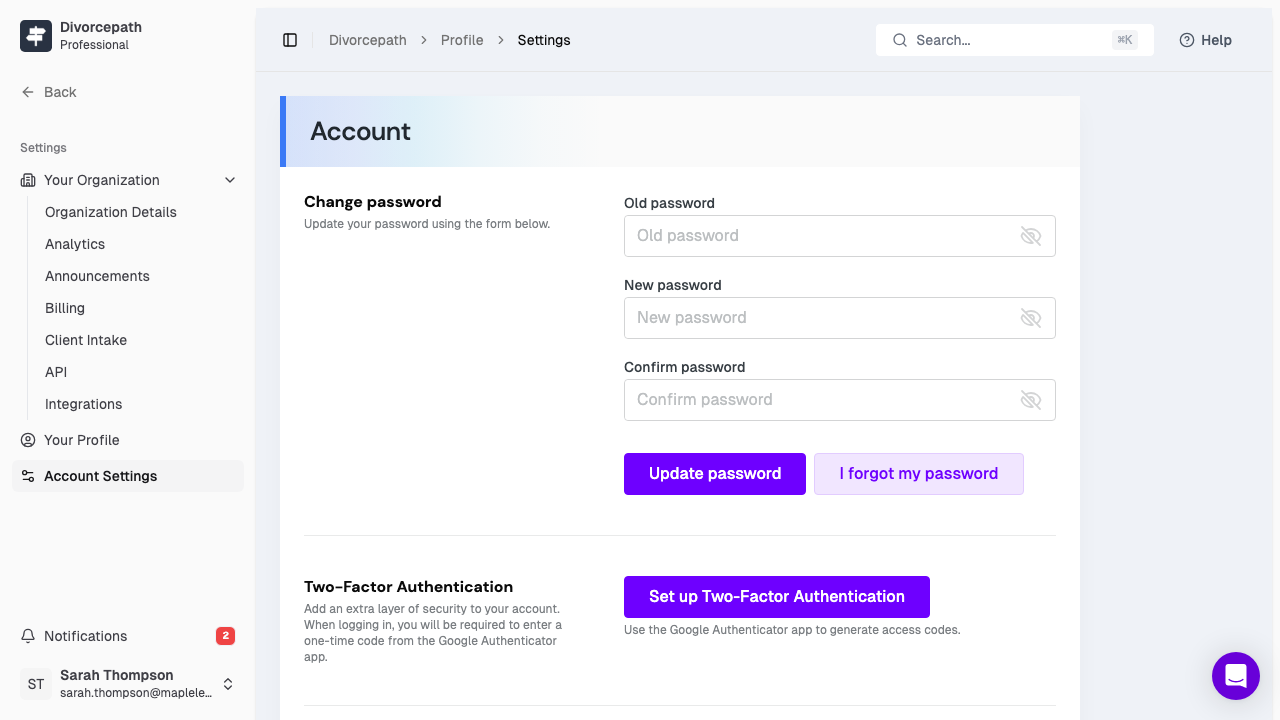
Family law matters involve highly confidential data, including financial records, personal information, and details about children. If your password is ever compromised, MFA prevents unauthorized access to your account because an attacker would also need your physical device to generate the verification code.
Divorcepath strongly recommends enabling MFA for all accounts, particularly for legal professionals managing client data.
Before setting up MFA, install a TOTP-compatible authenticator app on your mobile device. Common options include:
After enabling MFA, Divorcepath will display a set of one-time recovery codes. These codes allow you to access your account if you lose access to your authenticator app (for example, if your phone is lost or reset).
Important: If you lose both your authenticator app and your recovery codes, you will need to contact Divorcepath support at help@divorcepath.com to regain access to your account. Keep your recovery codes safe.
Once MFA is enabled, the sign-in process adds one additional step:
If you do not have access to your authenticator app, you can use one of your recovery codes instead.
If you need to disable MFA (for example, when switching to a new phone), follow these steps:
If you are switching devices, we recommend disabling MFA on the old device and then re-enabling it with your new device to ensure uninterrupted access.
Tip: If you use Authy, you can enable multi-device sync to avoid losing access when switching phones. Most other authenticator apps require you to manually transfer accounts.