This guide explains how to view, upgrade, downgrade, and cancel your Divorcepath subscription. All billing and subscription management is handled through your account settings.
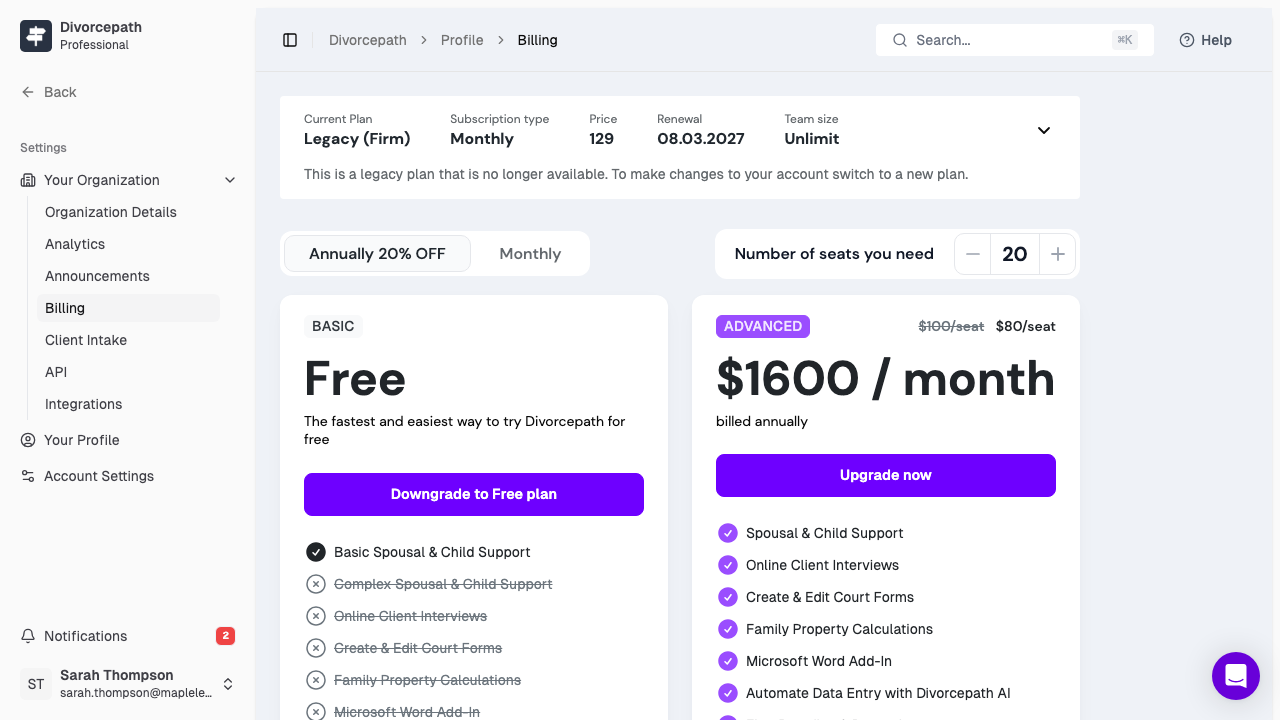
Viewing Your Current Plan
To see your current subscription details:
- Log in to your Divorcepath account.
- Navigate to Profile > Billing.
- Your current plan, billing frequency, and next billing date are displayed at the top of the page.
Upgrading Your Plan
You can upgrade from the Base plan to Professional, or from Professional to Organization, at any time. When you upgrade:
- Go to Profile > Billing.
- Click Change Plan or Upgrade.
- Select the plan you would like to move to.
- Confirm your selection and enter payment details if prompted.
Upgrades take effect immediately. If you are mid-cycle, you will be charged a prorated amount for the remainder of your current billing period.
Downgrading Your Plan
If you need to move to a lower-tier plan:
- Go to Profile > Billing.
- Click Change Plan.
- Select the plan you would like to downgrade to.
- Confirm your selection.
Downgrades take effect at the end of your current billing period. You will retain access to your current plan's features until then.
Changing Billing Frequency
Divorcepath offers both monthly and annual billing. Annual billing provides a discounted rate compared to monthly payments. To change your billing frequency:
- Go to Profile > Billing.
- Click Change Plan or look for the billing frequency option.
- Select either Monthly or Annual.
- Confirm the change.
The new billing frequency will apply at your next renewal date.
Updating Your Payment Method
Divorcepath accepts credit card payments processed through Stripe. To update your card on file:
- Go to Profile > Billing.
- Click Update Payment Method.
- Enter your new credit card details.
- Click Save to confirm.
Your new payment method will be used for all future charges.
Cancelling Your Subscription
If you need to cancel your subscription:
- Go to Profile > Billing.
- Click Cancel Subscription.
- Confirm that you wish to cancel.
Cancellation takes effect at the end of your current billing period. You will continue to have access to your plan's features until that date. After cancellation, your account will revert to the Base (free) plan.
Your client data and documents are retained after cancellation. You can continue to access them on the Base plan, subject to its usage limits.
Reactivating a Cancelled Subscription
If you have cancelled your subscription but wish to reactivate it before the end of your billing period:
- Go to Profile > Billing.
- Click Reactivate Subscription.
- Select your preferred plan and billing frequency.
- Confirm your selection.
If your billing period has already ended, you will need to subscribe again as a new subscription.
Need Help?
If you have questions about your subscription or encounter any issues, contact our support team at [email protected].
