This guide covers how to manage your Divorcepath account settings, including updating your profile, changing your password, configuring notifications, and more.
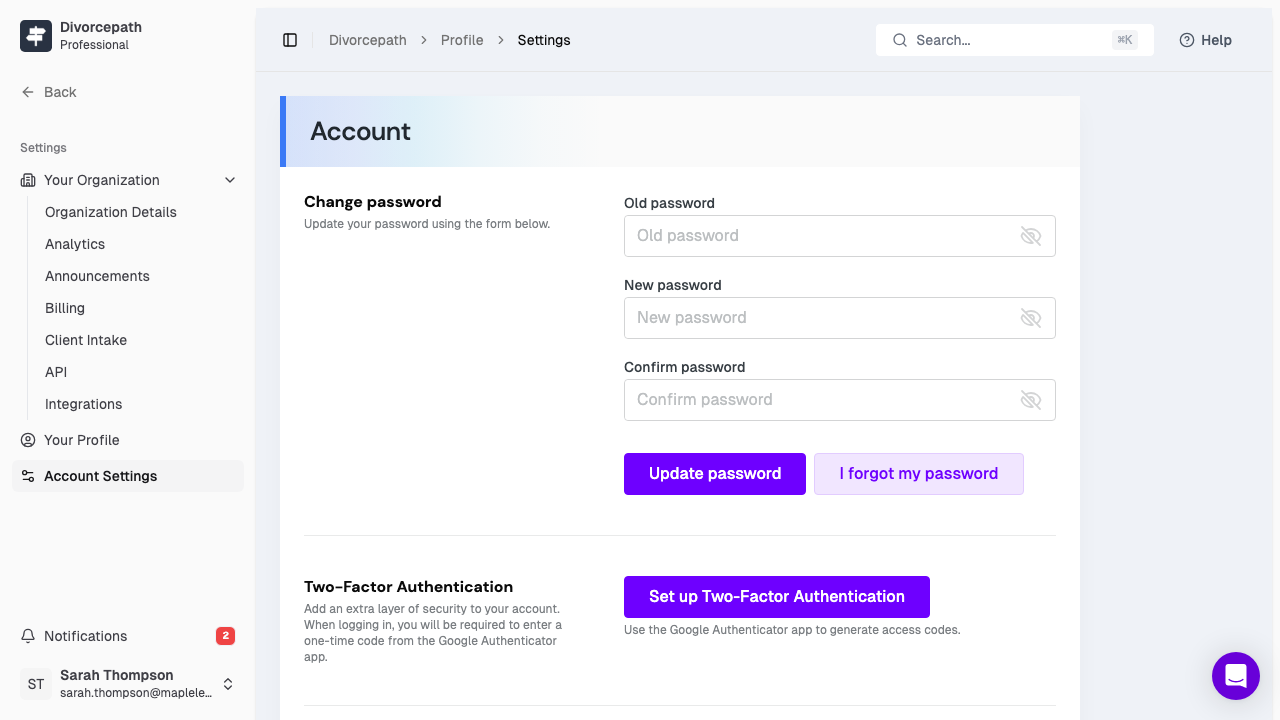
Accessing Account Settings
To access your account settings:
- Log in to your Divorcepath account.
- Navigate to Profile > Settings.
From here, you can manage all aspects of your account profile and preferences.
Updating Your Profile
You can update the following profile details from your account settings:
- Name -- your first and last name as displayed in your account
- Contact information -- your phone number and mailing address
- Profile photo -- upload or change your profile picture
- Professional details -- your role, firm name, and other professional information
To update your profile:
- Go to Profile > Settings.
- Edit the fields you wish to update.
- Click Save to apply your changes.
Changing Your Password
To change your account password:
- Go to Profile > Settings.
- Find the Password section.
- Enter your current password.
- Enter your new password and confirm it.
- Click Update Password.
Choose a strong password that is at least 8 characters long and includes a mix of upper and lower case letters, numbers, and special characters.
Multi-Factor Authentication (MFA)
Divorcepath supports time-based one-time password (TOTP) two-factor authentication for added account security. When enabled, you will need to enter a code from your authenticator app each time you log in.
To enable MFA:
- Go to Profile > Settings.
- Find the Multi-Factor Authentication or Two-Factor Authentication section.
- Click Enable.
- Scan the QR code with your authenticator app (e.g., Google Authenticator, Authy, or Microsoft Authenticator).
- Enter the verification code from your authenticator app to confirm setup.
Once enabled, you will be prompted for a TOTP code in addition to your password when logging in.
Notification Preferences
Divorcepath sends notifications for various events, including client activity, document updates, and billing reminders. You can customise which notifications you receive:
- Go to Profile > Settings.
- Find the Notifications section.
- Toggle individual notification types on or off based on your preferences.
- Click Save to apply your changes.
Email Verification
A verified email address is required to use certain Divorcepath features. If your email address is not yet verified:
- Go to Profile > Settings.
- Look for the verification status next to your email address.
- If unverified, click Resend Verification Email.
- Check your inbox for the verification email and click the link to confirm your address.
If you do not receive the verification email, check your spam or junk folder. You can also contact support at [email protected] for assistance.
Deleting Your Account
If you wish to permanently delete your Divorcepath account:
- Go to Profile > Settings.
- Scroll to the bottom of the page and click Delete Account.
- Confirm that you understand this action is permanent.
Warning: Deleting your account will permanently remove all your data, including client records, calculations, documents, and settings. This action cannot be undone. If you have an active subscription, cancel it before deleting your account to avoid further charges.
Need Help?
If you have questions about your account settings or need assistance, contact our support team at [email protected].
