Multi-factor authentication (MFA) adds an extra layer of security to your Divorcepath account. With MFA enabled, signing in requires both your password and a time-based verification code from an authenticator app on your phone. This is especially important for accounts that handle sensitive legal and financial information.
Why MFA Matters
Family law matters involve highly confidential data, including financial records, personal information, and details about children. If your password is ever compromised, MFA prevents unauthorized access to your account because an attacker would also need your physical device to generate the verification code.
Divorcepath strongly recommends enabling MFA for all accounts, particularly for legal professionals managing client data.
What You Will Need
Before setting up MFA, install a TOTP-compatible authenticator app on your mobile device. Common options include:
- Google Authenticator (iOS and Android)
- Authy (iOS, Android, and desktop)
- Microsoft Authenticator (iOS and Android)
- 1Password or other password managers with TOTP support
Enabling MFA
- Sign in to your Divorcepath account.
- Click your name at the bottom of the sidebar and choose Account to open Account Settings.
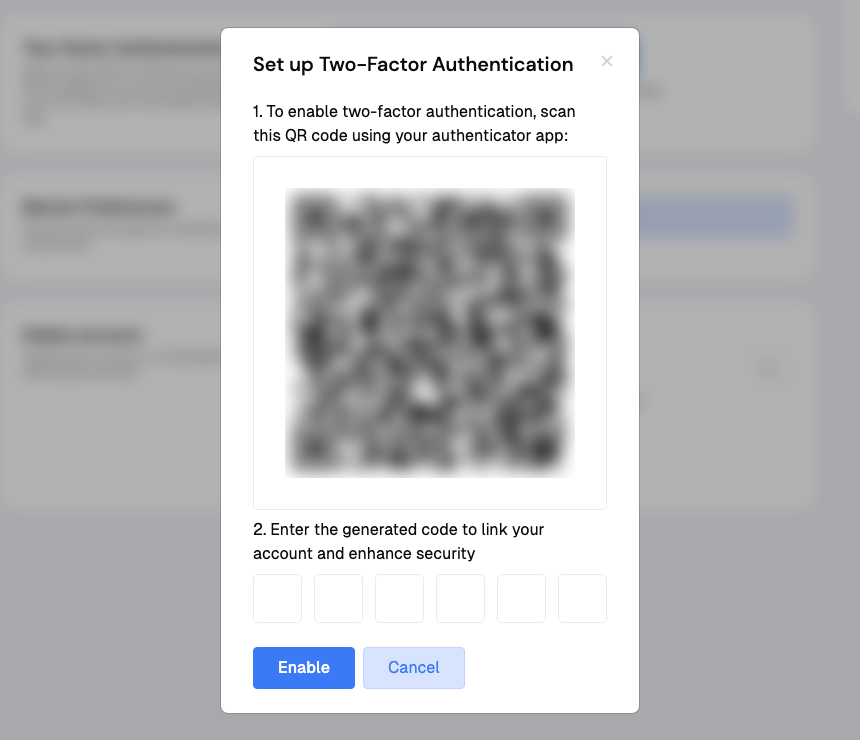
- In the Two-Factor Authentication section, click Set up Two-Factor Authentication.
- A QR code will be displayed on screen. Open your authenticator app and scan the QR code to add Divorcepath to your app.
- Your authenticator app will begin generating 6-digit verification codes that refresh every 30 seconds.
- Enter the current 6-digit code from your authenticator app in the boxes below the QR code.
- Click Enable to complete the setup.
Signing In with MFA
Once MFA is enabled, the sign-in process adds one additional step:
- Enter your email and password as usual.
- When prompted, open your authenticator app and enter the current 6-digit code under Code from authenticator app.
- Click Sign In to complete sign-in.
Resetting Your Password
If you forget your password, click Lost password? on the sign-in page and we'll email you a reset link. With MFA enabled, the link only changes your password: after you choose a new one, sign in with it and enter the code from your authenticator app.
Other links we email you work the same way when MFA is enabled. An email verification link verifies your email address, and a client portal invitation sets up your access, but neither signs you in. Client portal sign-in links can't be used to sign in to an account with MFA: sign in with your password and code instead.
If You Lose Access to Your Authenticator App
Divorcepath does not issue backup recovery codes, so keep your authenticator app backed up or synced if your app supports it. If you lose access to your authenticator app (for example, if your phone is lost or reset):
- Ask an organization admin to reset your two-factor setup. Admins can do this from Members & Access by clicking Edit next to the member and choosing Reset under Reset 2FA Setup?.
- If you're your organization's only admin, reset it yourself by email. Sign in with your email and password, and when you're asked for a code, click Email me a reset link under Lost access to your authenticator app?. Open the link we email you and click Reset 2FA. The link works once and expires after 15 minutes.
After a reset, sign in with your password and set up two-factor authentication again with your new device. If your organization requires two-factor authentication, you'll be asked to do this before you can continue.
Important: If you receive a reset link you didn't ask for, don't open it. Someone may know your password: change it, and contact Divorcepath support at [email protected]. If neither reset option applies to you, contact support at the same address to regain access to your account.
Disabling MFA
If you need to disable MFA (for example, when switching to a new phone), follow these steps:
- Sign in to your account (you will need your current authenticator app).
- Go to Account Settings.
- In the Two-Factor Authentication section, click Disable Two-Factor Authentication.
- Check your email and confirm the request using the link Divorcepath sends you.
If your organization requires two-factor authentication, or an admin has required it for your account, the disable option is not available.
If you are switching devices, we recommend disabling MFA on the old device and then re-enabling it with your new device to ensure uninterrupted access.
Tip: If you use Authy, you can enable multi-device sync to avoid losing access when switching phones. Most other authenticator apps require you to manually transfer accounts.
