Divorcepath allows you to send formal disclosure requests to the opposing party via email. These requests specify the financial documents you need, and allow you to track the status of each document as it moves through the disclosure process.
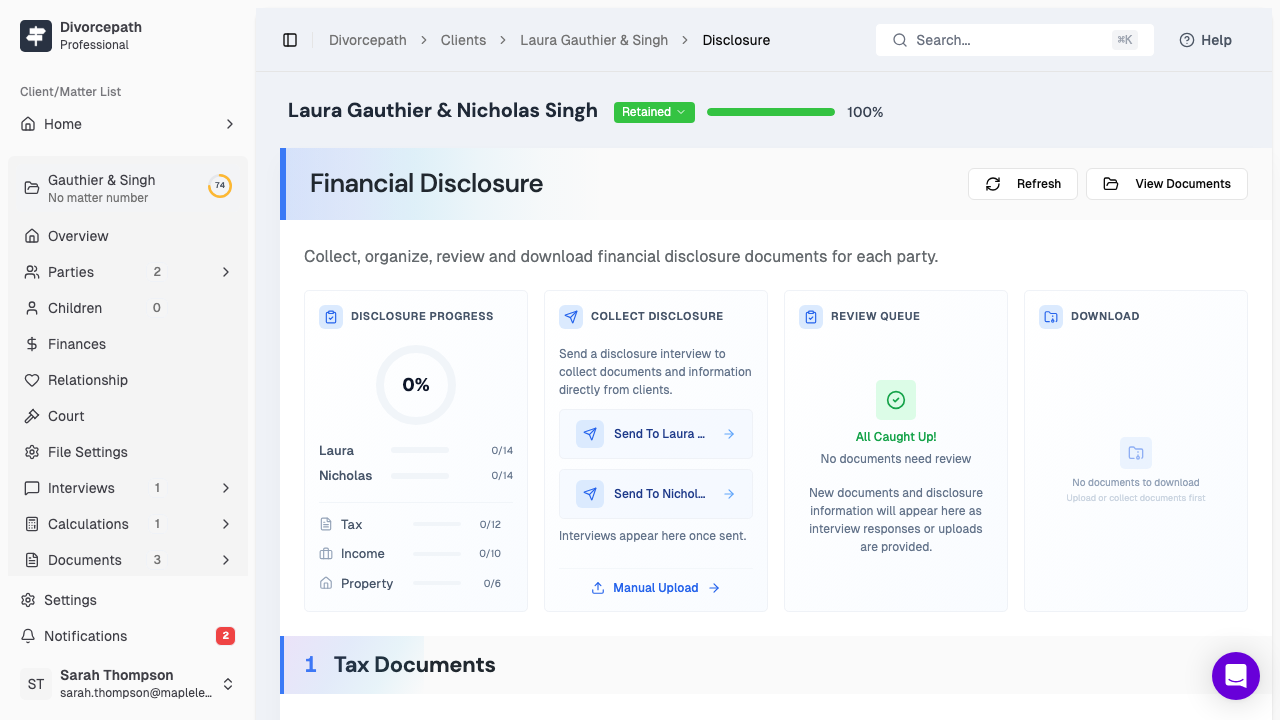
Creating a Disclosure Request
To create and send a disclosure request:
- Open the client file and navigate to the Disclosure tab.
- Click the New Disclosure Request button to create a new disclosure interview.
- Select the documents you wish to request from the other party.
- Enter the other party's email address if it has not already been saved to the file.
- Review the request details and click Send to deliver the disclosure request via email.
The other party will receive an email containing a secure link to the disclosure interview. They can access the interview without creating a Divorcepath account.
Requesting Specific Documents
When creating a disclosure request, you can specify the exact financial documents you need. Common document categories include:
- Tax returns — personal and corporate tax returns, notices of assessment, and notices of reassessment.
- Income documents — pay stubs, T4 slips, employment letters, and records of self-employment income.
- Bank statements — statements from chequing, savings, and investment accounts.
- Property documents — real estate appraisals, mortgage statements, and title documents.
- Debt documents — credit card statements, loan agreements, and lines of credit statements.
- Business records — financial statements, corporate tax returns, and shareholder agreements.
You can customize the request to include any combination of documents relevant to the matter.
Tracking Document Status
Once a disclosure request has been sent, you can track the status of each requested document. Each document can have one of the following statuses:
- Requested — the document has been requested but no response has been received yet.
- Received — the document has been provided by the other party.
- Deferred — the other party has indicated they will provide the document at a later date.
- Disputed — the other party has disputed the request or the relevance of the document.
- Confirmed — you have reviewed and confirmed receipt of the document.
- Not available — the other party has indicated the document is not available, along with a reason.
The Disclosure tab provides an at-a-glance overview of all document statuses, making it easy to see what has been received and what remains outstanding.
Handling "Not Available" Responses
When the other party marks a document as not available, they are prompted to provide a reason explaining why. You can review these reasons and decide how to proceed. Options include:
- Accepting the explanation and moving forward without the document.
- Disputing the response and requesting the document again.
- Seeking a court order to compel production of the document.
Resending Disclosure Requests
If the other party has not responded to a disclosure request, or if the original email was not received, you can resend the invitation:
- Navigate to the Disclosure tab in the client file.
- Locate the disclosure request you wish to resend.
- Click the Resend button to send a new email with the disclosure link.
The resent email will contain the same secure link to the disclosure interview, allowing the other party to pick up where they left off.
