The Organization plan in Divorcepath is designed for law firms and legal teams that need to collaborate on client files, share resources, and manage team members from a single account. This guide covers how to set up and manage your organization.
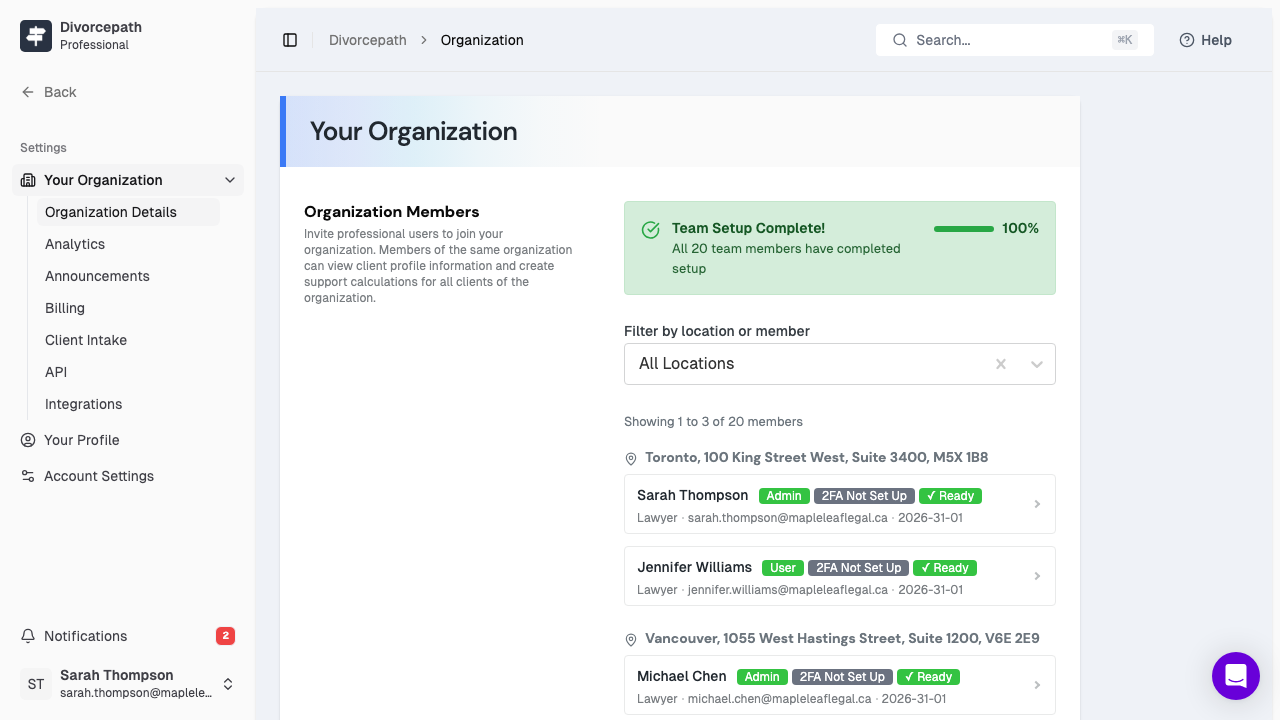
What Is an Organization?
An organization in Divorcepath is a shared workspace for your firm or team. It allows multiple users to access client files, share templates, and work collaboratively under a single billing account. The organization owner controls settings, permissions, and team membership.
Organization Settings
To access your organization settings:
- Log in to your Divorcepath account.
- Navigate to Profile > Organization.
From here, you can manage your organization name, logo, contact details, and other settings that apply across your team.
Inviting Team Members
To add a new member to your organization:
- Go to Profile > Organization.
- Navigate to the Team Members section.
- Click Invite Member.
- Enter the email address of the person you wish to invite.
- Select a role for the new member (see below).
- Click Send Invite.
The invited person will receive an email with a link to join your organization. If they do not already have a Divorcepath account, they will be prompted to create one.
Team Member Roles
Each team member is assigned a role that determines their level of access and permissions within the organization:
- Owner -- full control over the organization, including billing, settings, and the ability to delete the organization. There is one owner per organization.
- Admin -- can manage team members, organization settings, and all client files. Cannot modify billing or delete the organization.
- Lawyer -- full access to client files, calculations, and documents. Can create and manage their own clients.
- Assistant -- can view and edit client files assigned to them by lawyers or admins. Cannot create new clients independently.
- Librarian -- can manage shared document templates and precedents. Does not have access to individual client files.
To change a team member's role:
- Go to the Team Members section.
- Find the member whose role you wish to change.
- Select a new role from the dropdown menu.
- Click Save.
Managing Permissions
Roles provide a default set of permissions, but organization owners and admins can further control access by:
- Assigning specific clients to team members
- Restricting access to certain features or sections
- Reviewing team activity through the analytics dashboard
Office Locations
If your firm has multiple offices, you can add and manage office locations within your organization:
- Go to Profile > Organization.
- Navigate to the Locations section.
- Click Add Location.
- Enter the office name, address, and any other relevant details.
- Click Save.
Team members can be associated with specific office locations for organizational purposes.
Organization Billing
Organization billing is managed centrally by the organization owner. All team members are covered under a single subscription. To manage billing:
- Go to Profile > Billing.
- View your current plan, number of seats, and billing details.
- Update your payment method or change your plan as needed.
For details on invoices and payment history, see the Invoices and Billing History article.
Organization Announcements
Organization owners and admins can post announcements that are visible to all team members. Announcements are useful for sharing important updates, policy changes, or reminders.
To create an announcement:
- Go to Profile > Organization.
- Navigate to the Announcements section.
- Click New Announcement.
- Enter the announcement title and content.
- Click Publish.
Announcements will appear on the dashboard for all team members in your organization.
Organization Analytics
The Organization plan includes analytics that provide insight into how your team is using Divorcepath. Available metrics include:
- Number of clients managed per team member
- Calculations and documents generated
- Team activity and usage trends
To view analytics, go to Profile > Organization and navigate to the Analytics section.
Removing Team Members
To remove a member from your organization:
- Go to the Team Members section.
- Find the member you wish to remove.
- Click Remove next to their name.
- Confirm the removal.
Removed members will lose access to the organization's client files and shared resources. Their personal Divorcepath account will remain active on the Base plan.
Need Help?
If you have questions about managing your organization, contact our support team at [email protected].
