Interview templates are reusable, customizable question sets that streamline the process of creating and sending client intake interviews. Rather than selecting questions manually each time, you can create a template once and use it whenever you send a new interview.
Types of Templates
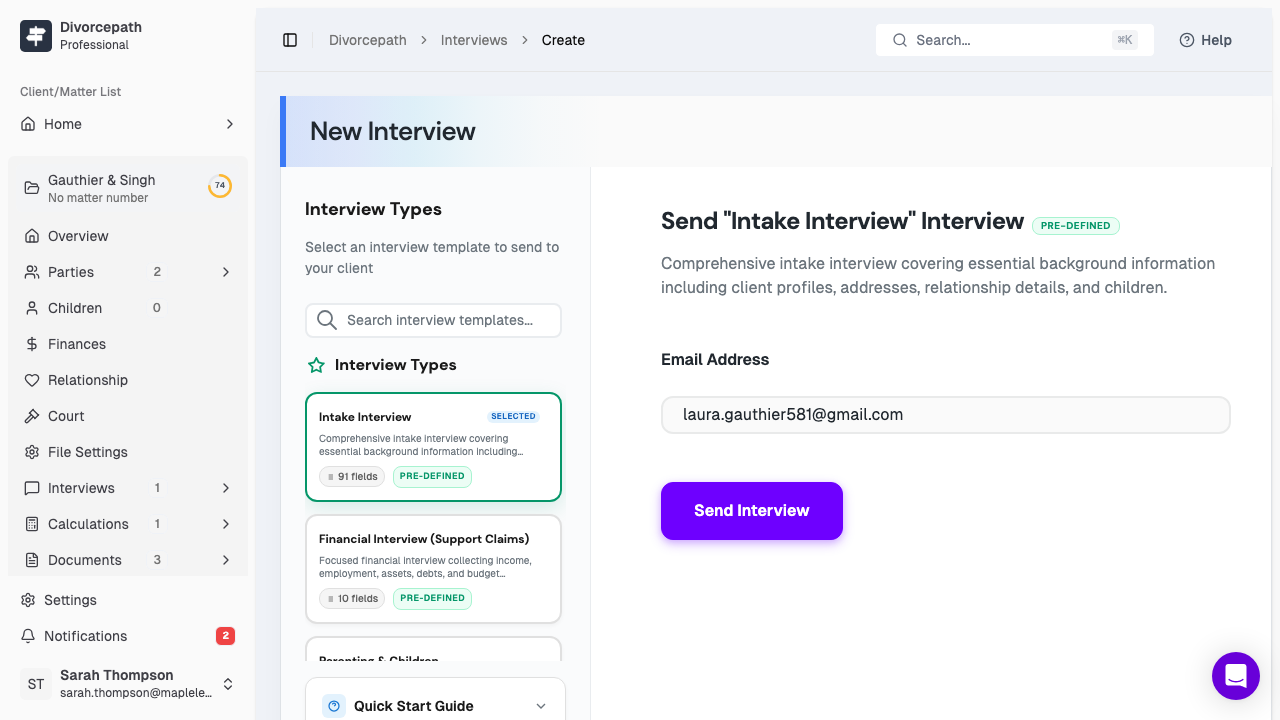
Divorcepath supports three types of interview templates:
- Global templates — pre-defined templates created and maintained by Divorcepath. These cover common intake scenarios and are available to all users. Global templates cannot be edited, but they can be used as a starting point for creating your own custom templates.
- Organization templates — custom templates created by members of your team. Organization templates are shared across your entire organization, so any team member can use them when sending interviews. These are ideal for standardizing your firm's intake process.
- Personal templates — templates you create for your own use. These are not shared with other team members.
Creating a Custom Template
To create a new interview template:
- Navigate to the Interviews section in your settings or from within a client file.
- Click New Template to start creating a custom template.
- Enter a name for the template that describes its purpose (e.g., "Full Intake," "Financial Update," or "Children and Parenting").
- Select the question categories and data paths you want to include in the template (see below).
- Configure any additional template settings.
- Click Save to create the template.
Once saved, the template will be available for selection whenever you create a new interview.
Selecting Question Categories and Paths
When building a template, you can choose from a range of question categories and specific data paths:
- Personal information — name, contact details, address, date of birth, and other identifying details.
- Relationship — marriage or cohabitation dates, separation date, and relationship history.
- Children — children's names, dates of birth, living arrangements, and parenting schedules.
- Income — employment income, self-employment, investments, government benefits, and other income sources.
- Expenses — monthly and annual living expenses by category.
- Assets and liabilities — real property, vehicles, bank accounts, investments, debts, and other financial holdings.
You can include as many or as few categories as needed. Focused templates that collect only the necessary information result in shorter interviews and higher completion rates from clients.
Editing a Template
To edit an existing template:
- Navigate to your template list in the Interviews settings.
- Click on the template you wish to edit.
- Update the template name, question categories, or settings as needed.
- Click Save to apply your changes.
Changes to a template only affect future interviews. Interviews that have already been sent using the template will not be affected by subsequent edits.
Organization-Level Templates
Organization templates are shared across your entire team, making them a powerful tool for standardizing your firm's intake process. Any team member with the appropriate permissions can create, edit, or delete organization templates. Benefits of organization templates include:
- Consistency — every team member uses the same set of questions, ensuring a uniform intake process across the firm.
- Efficiency — new team members can immediately start sending interviews using established templates without needing to build their own.
- Quality control — senior team members can create and maintain templates that reflect best practices and ensure all necessary information is collected.
Using Templates When Sending Interviews
When you create a new interview from a client file, you are prompted to select a template. The template selection screen displays all available templates, including global, organization, and personal templates. To use a template:
- Open the client file and navigate to the Interviews tab.
- Click New Interview.
- Select the desired template from the list.
- Review the included question categories and make any one-off adjustments if needed.
- Enter the client's email address and send the interview.
Using templates saves time and ensures that your interviews are comprehensive and consistent across all of your client files.
