Client files are the central unit of work in Divorcepath. Each client file represents a family law matter and contains all of the information, calculations, and documents related to that matter. This article covers how to create, organize, and manage your client files effectively.
Creating a New Client File
To create a new client file:
- Click the New Client button from your dashboard or the client list view.
- Enter the client's basic information, including their name and contact details.
- Select the file type (e.g., divorce, separation, variation).
- Click Create to save the new file.
Once created, the client file will appear in your client list and you can begin adding detailed information across the various tabs.
Client List View
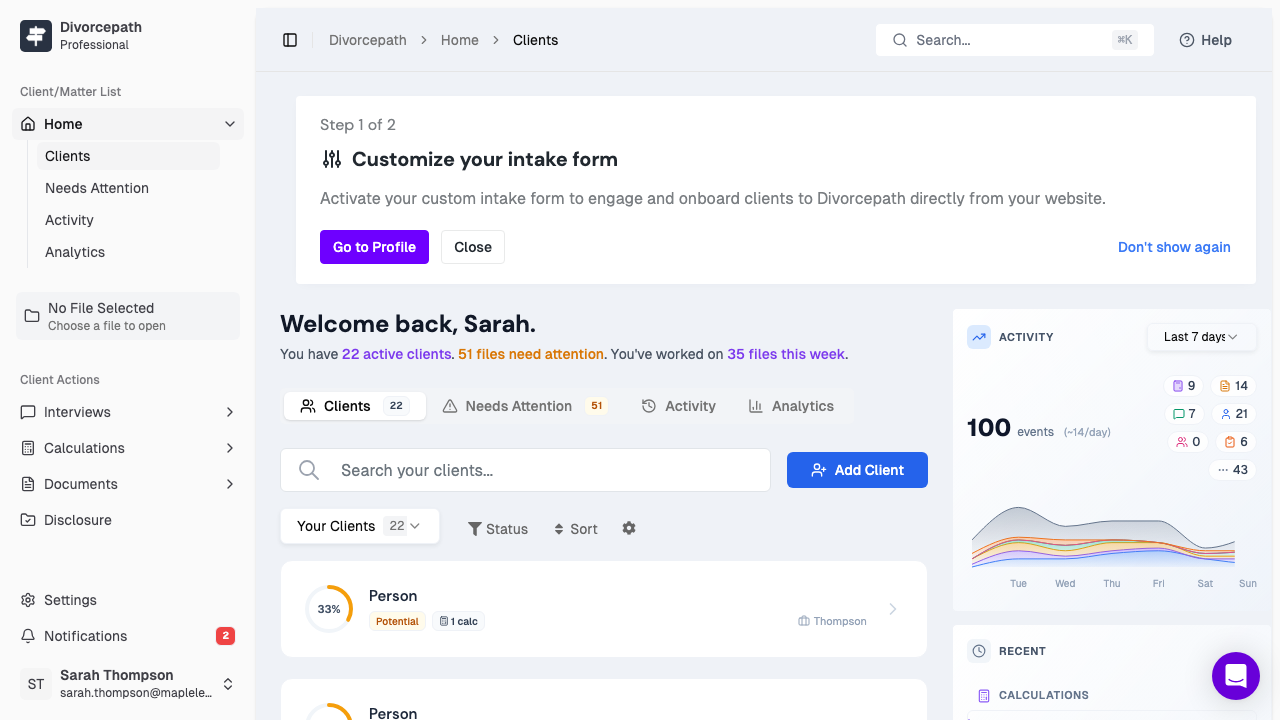
The client list view is your central hub for managing all of your client files. From this view, you can:
- Search for clients by name or other identifying information using the search bar.
- Filter clients by status (active, archived), labels, or priority level to quickly find the files you need.
- Sort client files by name, date created, or last modified.
The client list provides a quick overview of each file, including the client name, status, labels, and priority, allowing you to stay on top of your caseload at a glance.
Client File Overview Tab
When you open a client file, the Overview tab provides a summary of the matter. This includes key details about the parties, children, and any calculations or documents that have been created. The overview tab is designed to give you a quick snapshot of the file without needing to navigate through each individual tab.
Editing Client Details
To edit client details:
- Open the client file you wish to edit.
- Navigate to the relevant tab (e.g., Parties, Children, Finances).
- Update the information as needed.
- Changes are saved automatically as you make them.
You can update client information at any time, and any changes will be reflected across all related calculations and documents.
Labels and Priorities
Labels and priorities help you organize and categorize your client files:
- Labels allow you to tag files with custom categories, such as "urgent," "pending disclosure," or "settlement." You can create and assign multiple labels to a single file.
- Priorities let you flag files as high, medium, or low priority, making it easy to focus on the most pressing matters.
You can assign labels and priorities from the File Settings tab within a client file, or directly from the client list view. Use the filter options in the client list to display only files matching specific labels or priority levels.
Making Files Private
If you need to restrict access to a particular client file, you can mark it as private. A private file is only visible to the team member who created it and any team members who have been explicitly granted access. To make a file private:
- Open the client file and navigate to File Settings.
- Toggle the Private option on.
- Optionally, grant access to specific team members who should be able to view the file.
Private files will not appear in the client list for team members who do not have access.
Sharing Files with Team Members
Divorcepath makes it easy to collaborate on client files with your team. By default, client files are visible to all team members in your organization. You can manage file sharing through the File Settings tab, where you can control which team members have access to a specific file. This is especially useful for firms with multiple lawyers or support staff working on different matters.
Archiving and Deleting Files
When a matter is concluded, you can archive the client file to keep your active client list clean while preserving the record:
- Archiving removes the file from your active client list but retains all of the data. You can restore archived files at any time by filtering for archived files in the client list and selecting the restore option.
- Deleting permanently removes the client file and all associated data. This action cannot be undone, so use it with caution. To delete a file, open File Settings and click Delete File.
It is recommended to archive files rather than delete them, as archived files can be restored if needed in the future.
File Settings
The File Settings tab contains additional configuration options for each client file:
- File type — set the type of family law matter (e.g., divorce, separation, variation).
- Labels and priorities — organize and categorize the file.
- Privacy settings — control who can access the file.
- Remote signing — enable or configure remote document signing for the file.
Taking the time to configure your file settings properly helps keep your caseload organized and ensures the right team members have access to the files they need.
