Coyote Sync connects your Coyote data to Divorcepath so child protection files can be created or updated without re-entering the same information in both systems. An admin creates the Divorcepath connection details, and your IT team runs a small PowerShell sync tool on a Windows computer or server that can access Coyote.
This article is for Divorcepath admins and IT teams. It uses sanitized screenshots and placeholder values. Do not copy placeholder keys or secrets into your real setup.
Who does what
| Step | Owner | Result |
|---|---|---|
| Create connection details in Divorcepath | Admin | Divorcepath shows the URL, key, and one-time secret needed by the sync tool. |
| Install the Windows sync tool | Your IT team | The Windows computer or server can read Coyote and connect to Divorcepath. |
| Run the discovery report | Your IT team, with Divorcepath support | Divorcepath can review expected files and counts before any matter data is sent. |
| Run and schedule the sync | Your IT team | Approved Coyote file updates are sent to Divorcepath on the agreed schedule. |
Before you start
- Admin access to your Divorcepath account.
- Coyote Sync available under your Divorcepath integrations.
- A Windows computer or server that can connect to Coyote.
- PowerShell 7 or later on that Windows computer or server.
- Read access to the Coyote data for files, parties, children, lawyers, and courts.
- The Coyote sync package from Divorcepath support.
1. Create connection details in Divorcepath
In Divorcepath, go to your organization integrations and open Coyote Sync. Click Create connection details.
Divorcepath will show three values for the setup file:
- Divorcepath URL
- Key
- Secret
The secret is shown only once. Use Copy settings right away if you want to copy the generated setup values into dpsync.config.json. Store the secret only on the Windows computer or server that runs the sync.
Files created through Coyote Sync will show the admin who created these connection details as the creator in Divorcepath.
2. Unzip the sync package
Place the package in a stable folder such as C:\dpsync. Keep the script, setup file, logs, exports, and state files together so Divorcepath support can review them if needed.
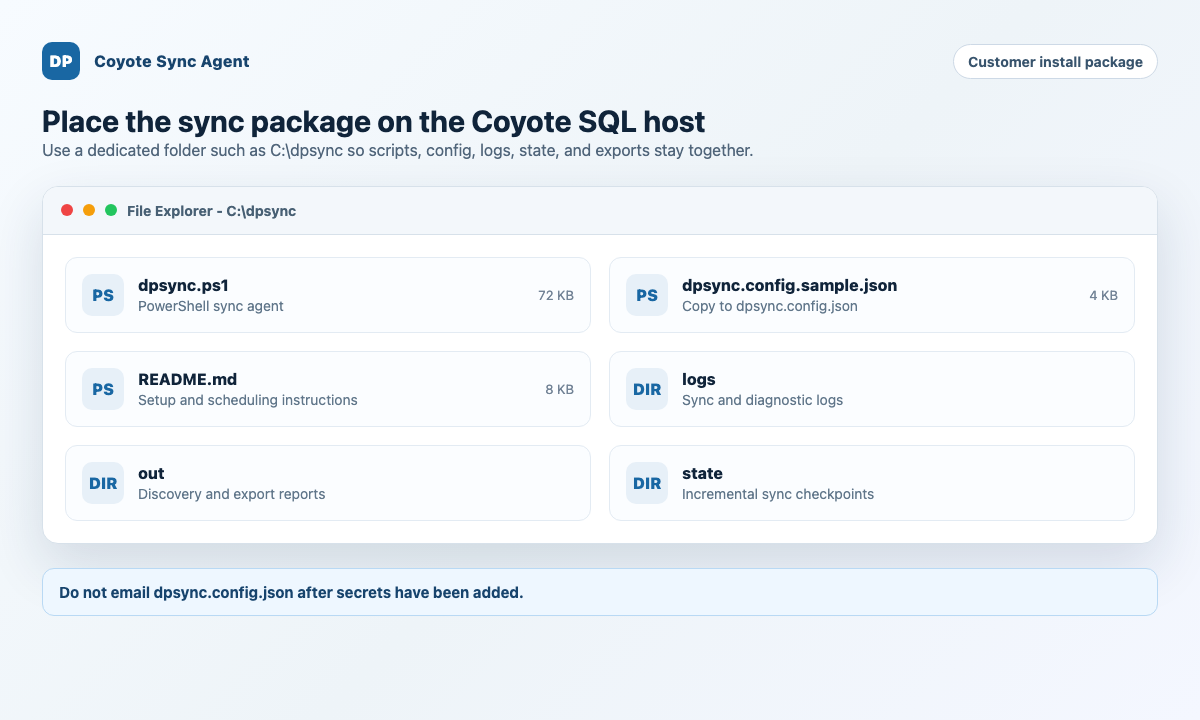
Copy dpsync.config.sample.json to dpsync.config.json. Do not send dpsync.config.json by email after the secret has been added.
3. Fill in dpsync.config.json
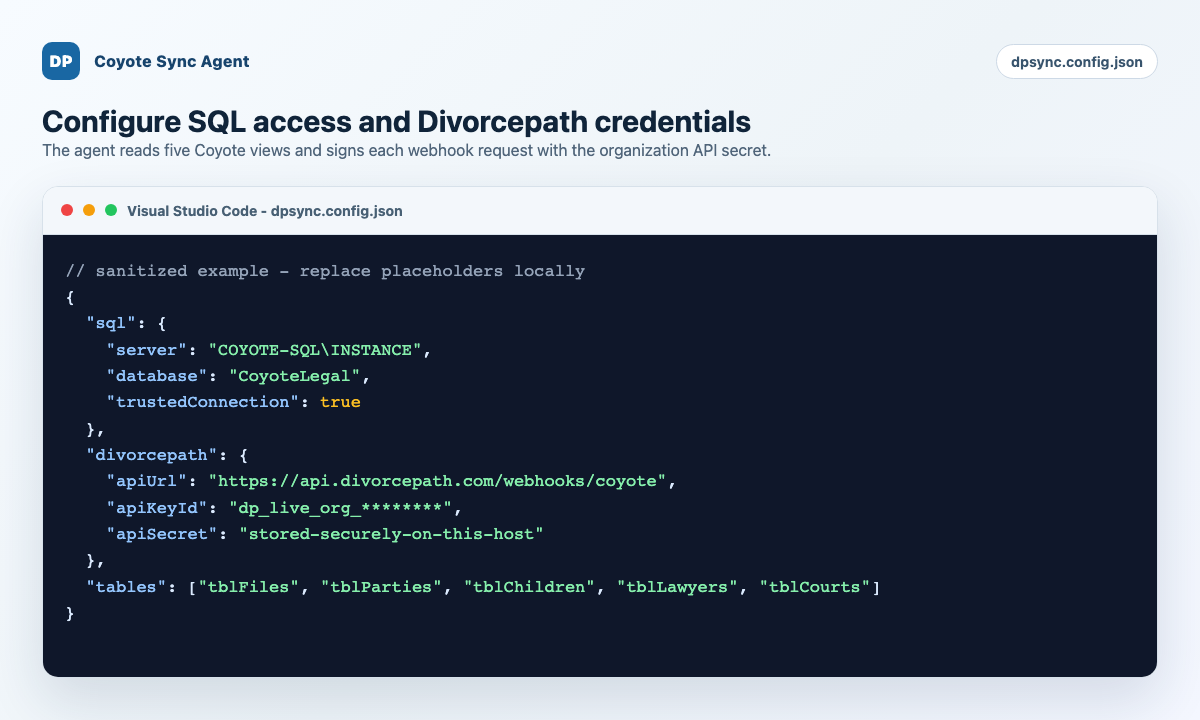
Open dpsync.config.json and add the Coyote database details plus the Divorcepath URL, key, and secret from the Coyote Sync page.
The setup file uses these field names:
apiUrlfor the Divorcepath URLapiKeyfor the keyapiSecretfor the secret
The table list should include the five Coyote tables or views used by Divorcepath:
DivorceMate_tblFilesDivorceMate_tblPartiesDivorceMate_tblChildrenDivorceMate_tblLawyersDivorceMate_tblCourts
4. Run the discovery report
Run discovery before any real sync. Discovery checks the Coyote connection, available data, columns, and row counts without sending matter data to Divorcepath.
pwsh -NoProfile -File .\dpsync.ps1 -Mode Discover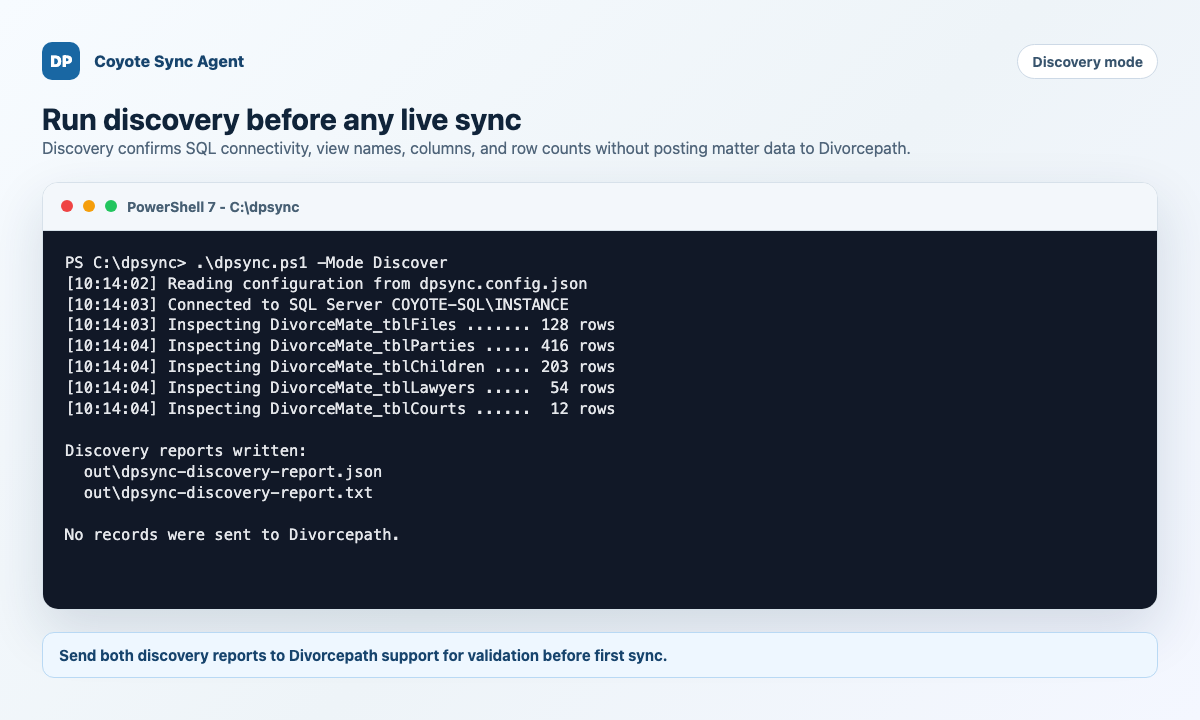
Send both discovery reports to Divorcepath support:
out\dpsync-discovery-report.jsonout\dpsync-discovery-report.txt
5. Run the first real sync
After Divorcepath support reviews the discovery report, run the first full sync while Divorcepath support is available.
pwsh -NoProfile -File .\dpsync.ps1 -Mode Sync -Full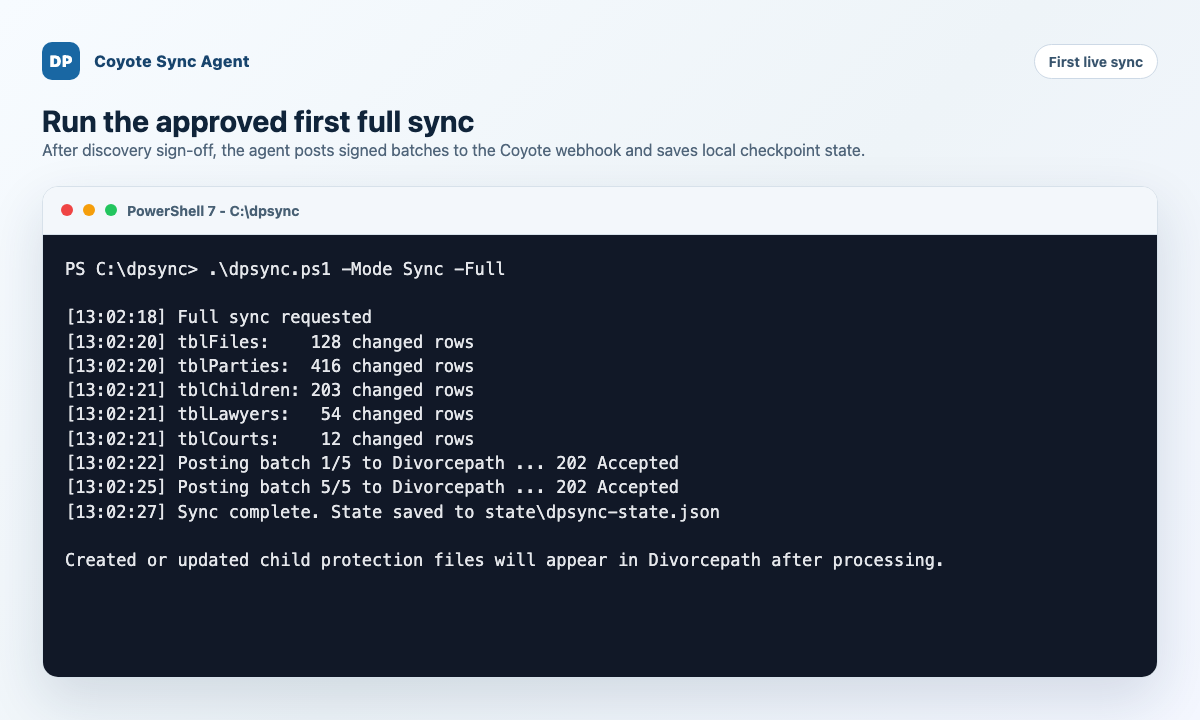
After processing, review the first created or updated files in Divorcepath. Confirm the CFS applicant, parent respondents, lawyers, children, court location, and court file number before scheduling regular updates.
6. Schedule regular updates
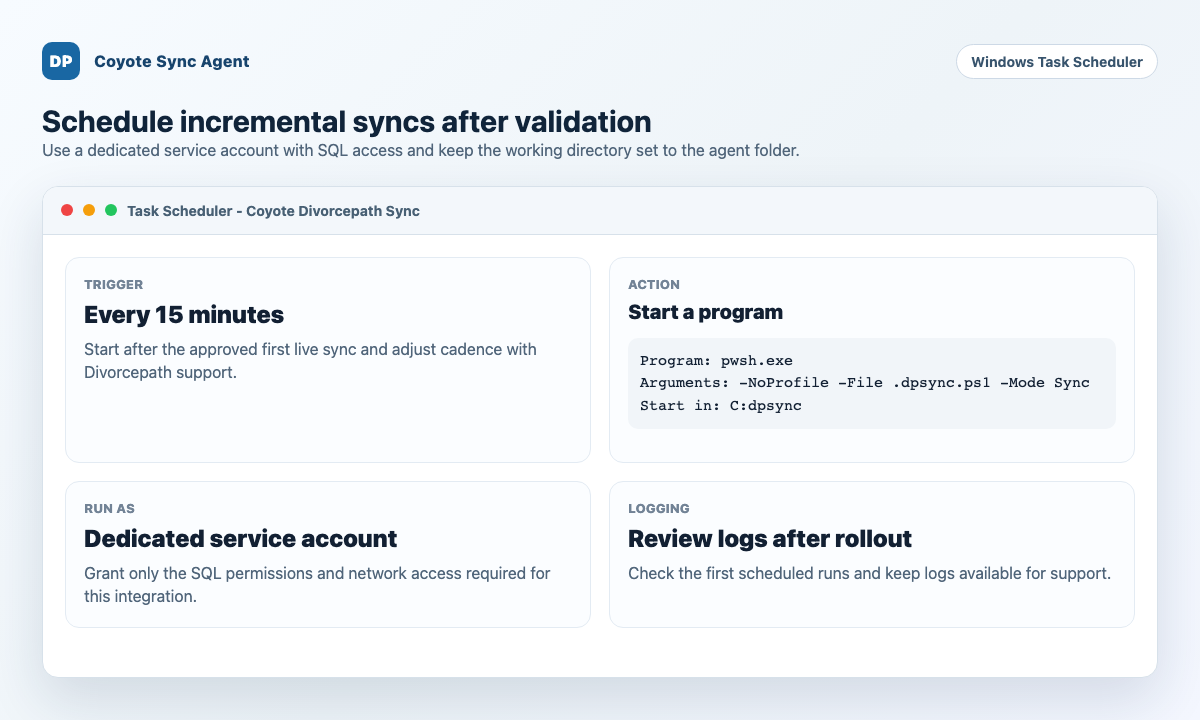
Once the first sync has been reviewed, use Windows Task Scheduler to run regular updates at the agreed cadence. The scheduled task should use a dedicated Windows account with only the Coyote and network permissions needed for this sync.
What Divorcepath creates
| Coyote data | Divorcepath result |
|---|---|
| File profile, court, and file number | A child protection file with court location and court file number. |
| CFS applicant information | The CFS details from Coyote are used for the applicant. |
| Parents or respondent parties | Parents are added as respondents and are not marked as your client. |
| Lawyer information | Lawyers are matched to lawyers already saved in Divorcepath when possible. If there is no match, Divorcepath creates a new lawyer contact. |
| Children and child lawyer information | Children are added to the file, including child lawyer information when supplied by Coyote. |
Troubleshooting
| Issue | What to check |
|---|---|
| Discovery row counts are zero | Confirm the Windows account can read the Coyote data and that the database name in dpsync.config.json is correct. |
| Sync is not authorized | Confirm the Divorcepath URL, key, and secret were copied exactly. If new connection details were created, update dpsync.config.json before the next sync. |
| Files do not appear after sync | Check the sync logs, then contact Divorcepath support with the sync time and account name. |
| Wrong lawyer or party assignment | Send the affected Coyote file ID and party names to Divorcepath support for mapping review. |
Security notes
- Use one setup file per Divorcepath account.
- Store the secret only on the Windows computer or server that runs the sync.
- Do not email the configured
dpsync.config.json. - Keep discovery reports and sync logs available during rollout.
- If you create new connection details in Divorcepath, update
dpsync.config.jsonbefore the next scheduled sync.
