The Microsoft 365 email integration helps organizations connect approved mailboxes, review matched messages, and file them into the right matter records without treating email as a separate system.
What the integration does
Once configured, the integration can:
- connect Microsoft 365 mailboxes and shared inboxes
- match messages to the right matter based on your filing rules
- queue messages for review before they are attached to a client record
- support shared mailbox workflows for teams that work from a common address
- surface mailbox health so administrators can see whether the connection is operating normally
Connect a mailbox
- Sign in to Divorcepath.
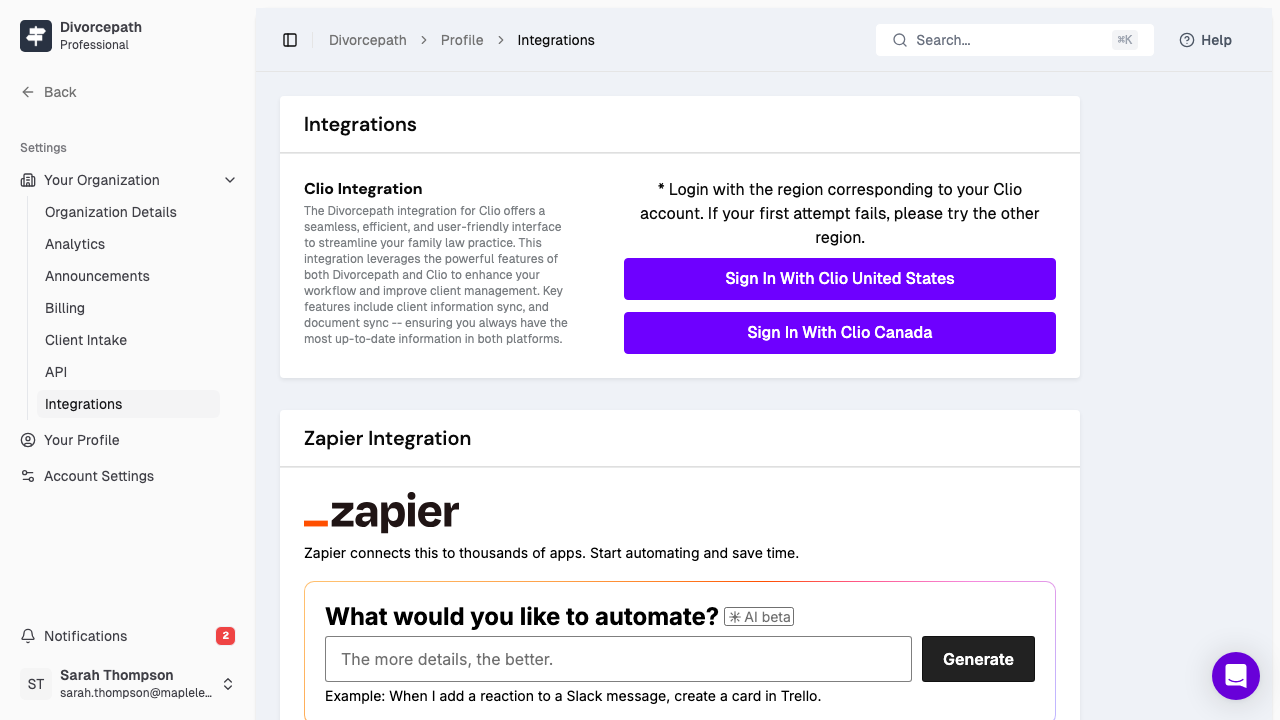
- Open Profile > Integrations.
- Select the Outlook integration and choose Connect.
- Complete Microsoft sign-in and approve the requested permissions.
- Return to Divorcepath and confirm the mailbox is connected successfully.
The integration requires a Microsoft 365 business or enterprise account. Personal Outlook.com accounts are not supported.
Choose which mailboxes are monitored
After the mailbox is connected, review the Mailboxes section in the integration settings and enable only the mailboxes you want Divorcepath to monitor for filing and review.
- Open the Outlook integration settings.
- Select the mailboxes that should be monitored.
- Save the configuration.
You can add or remove monitored mailboxes later as your team’s workflow changes.
Set up filing rules
Filing rules tell Divorcepath how to match email to the right client file.
- Open the Filing Rules section in the Outlook integration settings.
- Create a rule based on the criteria your team uses most often, such as sender, recipient, domain, or subject line keywords.
- Choose the matter or client record the matched messages should be routed to.
- Save the rule and test it with a small pilot set of messages.
If an email matches more than one rule, Divorcepath can queue it for review so your team can confirm the right destination before it is filed.
Review matched email before filing
By default, matched messages can be queued for review before they are attached to a matter record. This helps your team keep the filing process accurate and avoid pushing irrelevant email into the client file.
- Open the email review queue in Divorcepath.
- Review the suggested filing destination.
- Approve the filing or dismiss the message if it should not be attached to the record.
Use shared mailboxes
If your team works from a shared address, such as an intake or general inbox, you can connect that mailbox so messages can be reviewed and filed into the right matters as part of the same workflow.
- Confirm the user completing setup has access to the shared mailbox in Microsoft 365.
- Add the shared mailbox from the Outlook integration settings.
- Apply filing rules that match the way your team triages shared-mailbox traffic.
Monitor mailbox health
The integration settings page shows whether each mailbox is connected, when the last sync occurred, and whether any errors need attention. If a mailbox falls into an error state, reconnect it and confirm Microsoft permissions and mailbox access are still valid.
Disconnect the integration
- Go to Profile > Integrations.
- Open the Outlook integration.
- Select Disconnect and confirm.
Disconnecting the integration stops mailbox monitoring and email filing, but it does not remove messages that were already attached to client records. If you need help with setup or mailbox troubleshooting, contact [email protected].
