Divorcepath allows you to create separation agreements from professionally drafted templates, with client data automatically merged into the document. This streamlines the drafting process and ensures consistency across your agreements.
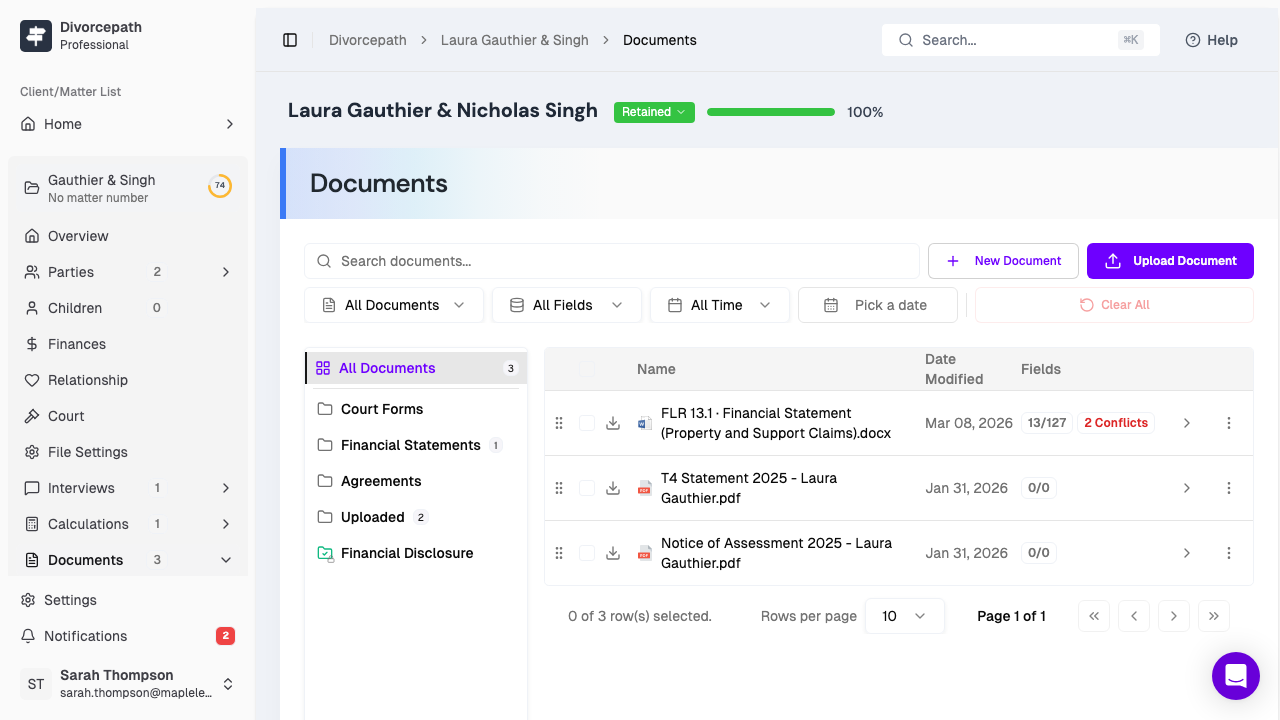
Starting a New Agreement
To create a separation agreement:
- Open the client file for the relevant matter.
- Navigate to the Documents tab.
- Click the New Document button.
- Select Agreement as the document type.
Selecting an Agreement Template
Divorcepath provides a selection of agreement templates designed for common family law scenarios. Browse the available templates and select the one that best fits your client's situation. Each template includes standard clauses covering topics such as:
- Parenting arrangements and custody
- Child support obligations
- Spousal support terms
- Division of property and debts
- Dispute resolution mechanisms
Automatic Data Population
When you generate the agreement, Divorcepath automatically populates the template with information from the client profile. This includes party names, addresses, children's details, financial information, and other relevant data. You do not need to manually enter this information, which reduces the risk of errors and saves time.
Customising Content and Clauses
After the agreement is generated, you can customise it to suit the specific needs of the matter:
- Open the agreement in the Document Editor by clicking on it in the Documents tab.
- Use the Sections panel on the right side of the editor to show or hide optional clauses and sections.
- Edit text directly in the editor to adjust language, add custom terms, or remove provisions that do not apply.
- Use the Data panel to review and update any mapped field values.
The Sections panel is particularly useful for agreements, as it allows you to toggle entire clauses on or off without needing to manually delete or rearrange text.
Reviewing the Agreement
Before finalising the agreement, it is good practice to:
- Review all auto-populated fields to ensure accuracy.
- Confirm that the correct sections and clauses are included for the matter.
- Check the Calculations panel if the agreement references any calculated values such as support amounts.
- Use the History panel to review changes if multiple edits have been made.
Generating and Saving
The agreement is saved automatically as you work in the editor. You can also:
- Export as PDF for review, signing, or filing.
- Download as DOCX to share with opposing counsel or edit in another word processor.
- Save As to create a copy of the agreement with a different name, useful for tracking revisions or creating alternative drafts.
