Financial statement forms are a key component of family law proceedings. Divorcepath simplifies the process of creating these forms by pre-filling them with financial data from your client profile, including income, expenses, assets, and liabilities.
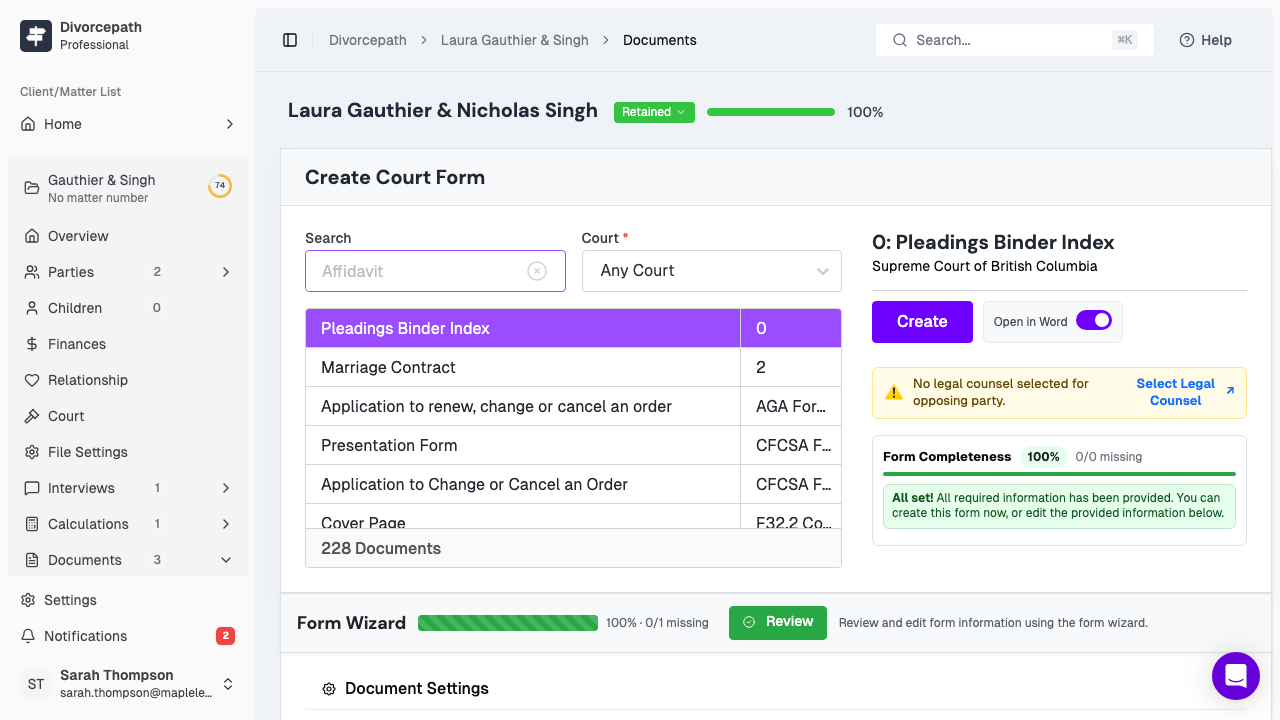
Starting a New Financial Statement
To create a financial statement form:
- Open the client file for the relevant matter.
- Navigate to the Documents tab.
- Click the New Document button.
- Select Financial Form as the document type.
Selecting the Jurisdiction-Specific Form
Financial statement requirements vary by province and court level. After selecting Financial Form, choose the appropriate jurisdiction and court to see the available forms. Divorcepath includes the standard financial statement forms required in each Canadian jurisdiction, so you can be confident you are using the correct form for your matter.
Auto-Populated Financial Data
When you generate the financial statement, Divorcepath automatically populates the form with data from the client profile's financial information. This includes:
- Income — employment income, self-employment income, investment income, government benefits, and other sources of income as entered in the client profile.
- Expenses — housing costs, transportation, food, childcare, and other monthly or annual expenses.
- Assets — real property, vehicles, bank accounts, investments, pensions, and other assets.
- Liabilities — mortgages, loans, credit card debts, and other outstanding obligations.
This automatic population saves considerable time compared to manually transferring financial data into the form.
Reviewing Auto-Populated Data
After the form is generated, it is important to review the auto-populated data for accuracy:
- Open the financial statement in the Document Editor by clicking on it in the Documents tab.
- Use the Data panel to see all mapped fields and their current values.
- Use the Calculations panel to review any automatic calculations, such as subtotals and totals, that have been computed from the entered data.
- Edit any values directly in the editor if corrections are needed.
Calculations and Totals
Financial statement forms typically include calculated fields such as subtotals, category totals, and grand totals. Divorcepath handles these calculations automatically through the Calculations panel in the Document Editor. When you update a value in the form, related calculations are updated accordingly, ensuring that your totals remain accurate throughout the editing process.
Generating the Final Document
Once you have reviewed and verified the financial data, you can:
- Export as PDF for filing with the court.
- Download as DOCX if you need to make further edits in another word processor.
- Save a snapshot to preserve a version of the financial statement at a specific point in time, which is useful if financial circumstances change and the form needs to be updated later.
The financial statement will remain in the client file's Documents tab, where you can return to it at any time to make updates or generate a revised version.
