This article covers the basics of editing documents in the Divorcepath Document Editor, including text editing, toolbar usage, keyboard shortcuts, and working with tables.
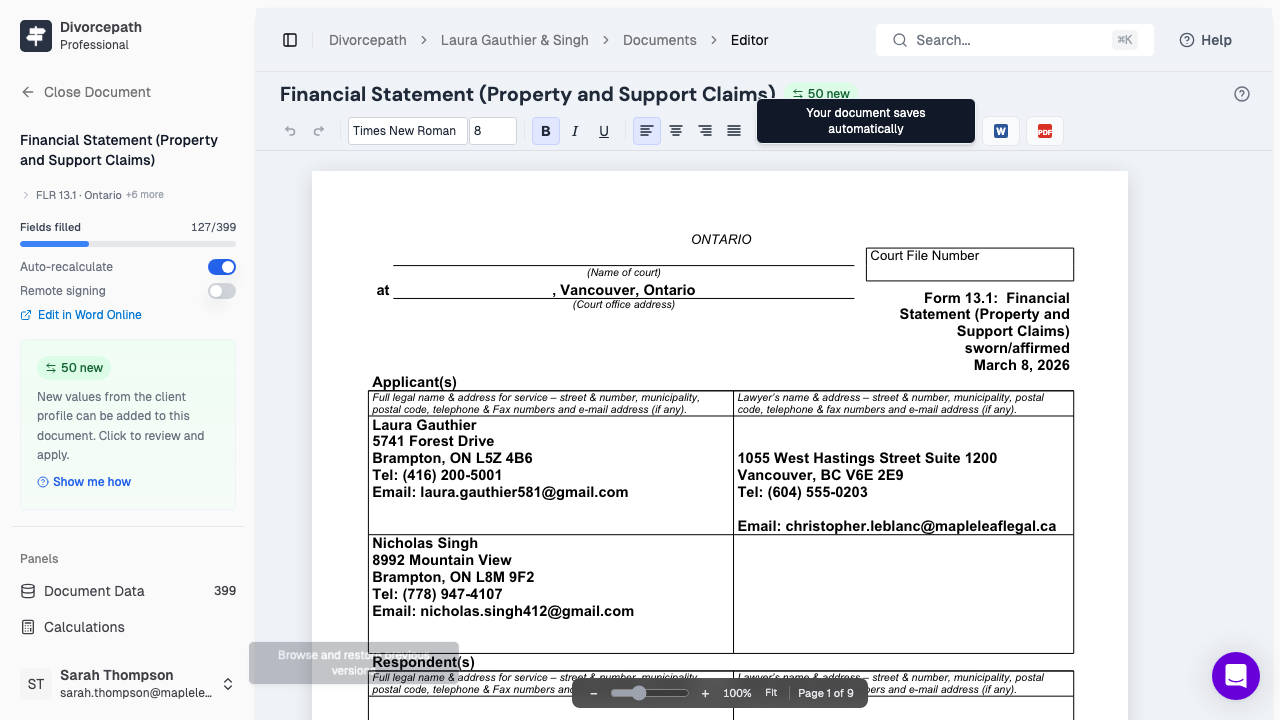
Text Editing Basics
To edit text in the Document Editor:
- Click anywhere in the document canvas to place your cursor.
- Begin typing to insert text at the cursor position.
- Select text by clicking and dragging, or by holding Shift while pressing the arrow keys.
- Delete selected text by pressing the Delete or Backspace key.
Text editing in the Document Editor works similarly to other word processors, so the experience should feel familiar.
Using the Toolbar
The toolbar at the top of the editor provides access to the most common formatting options:
- Bold — apply bold formatting to selected text.
- Italic — apply italic formatting to selected text.
- Underline — apply underline formatting to selected text.
- Font Size — change the size of selected text using the font size selector.
- Alignment — set paragraph alignment to left, centre, right, or justified.
- Lists — create numbered or bulleted lists from selected paragraphs.
To apply formatting, select the text you wish to format and then click the appropriate toolbar button. To remove formatting, select the text and click the same button again to toggle it off.
Undo and Redo
The editor supports undo and redo to help you correct mistakes or revert changes:
- Undo — press Ctrl+Z (or Cmd+Z on Mac) to undo the last action. You can undo multiple actions by pressing the shortcut repeatedly.
- Redo — press Ctrl+Y (or Cmd+Y on Mac) to redo an action that was undone.
You can also use the undo and redo buttons in the toolbar, or access the undo/redo history from the History panel.
Auto-Save
The Document Editor saves your work automatically as you edit. There is no need to manually save the document. A save indicator in the toolbar confirms when your latest changes have been saved. This means you can focus on editing without worrying about losing your work.
Keyboard Shortcuts
The following keyboard shortcuts are available in the editor:
- Ctrl+Z / Cmd+Z — Undo
- Ctrl+Y / Cmd+Y — Redo
- Ctrl+B / Cmd+B — Bold
- Ctrl+I / Cmd+I — Italic
- Ctrl+U / Cmd+U — Underline
- Ctrl+A / Cmd+A — Select all text
Working with Tables
Many legal documents, particularly financial statements and court forms, contain tables. The Document Editor supports editing table content:
- Click inside a table cell to place your cursor and begin editing the cell content.
- Use the Tab key to move to the next cell, or Shift+Tab to move to the previous cell.
- Press Enter to create a new paragraph within a table cell.
- Table structure (rows and columns) is preserved from the original document template.
Page Navigation
For multi-page documents, you can navigate between pages by scrolling through the document canvas. The editor renders pages with accurate page breaks, so you can see exactly how the document will appear when printed or exported. The current page number is displayed in the editor to help you keep track of your position in the document.
