The Documents tab within each client file serves as your central document library for that matter. It provides tools for organising, uploading, and managing all documents related to a client file, including court forms, agreements, financial statements, and any other files you upload.
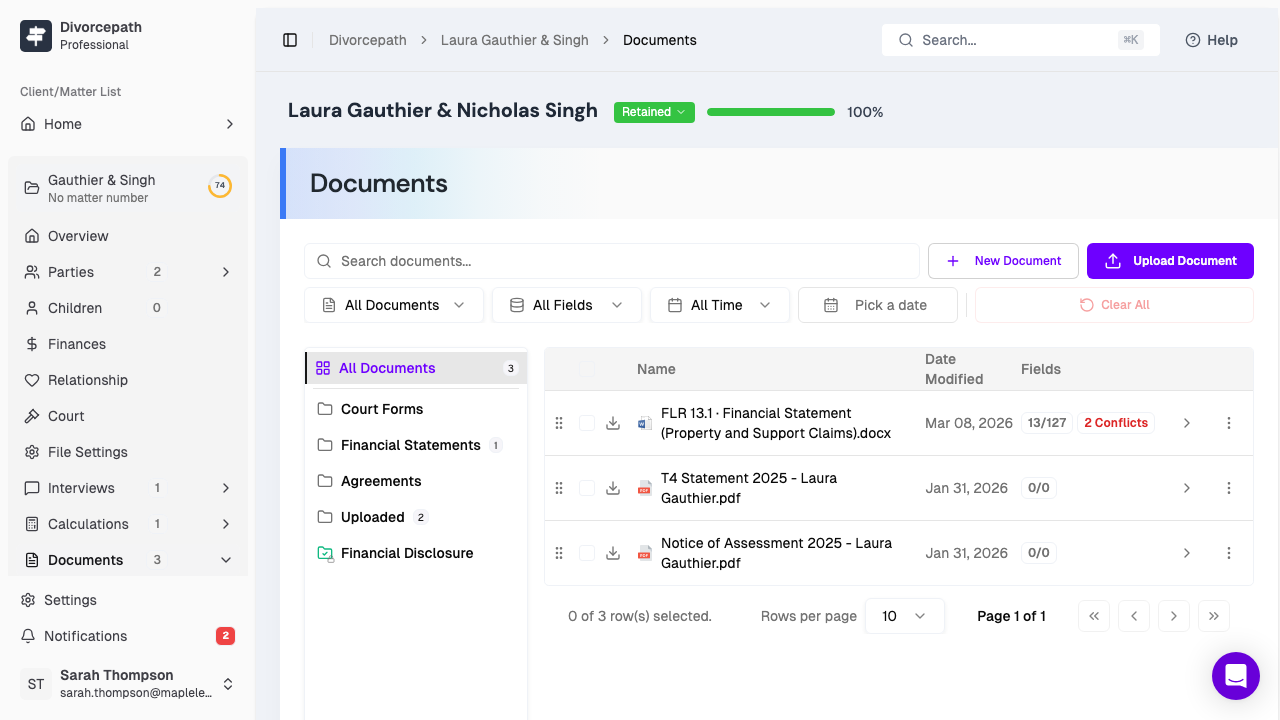
Document Library Overview
When you open the Documents tab, you will see a list of all documents associated with the client file. Each document entry displays the document name, type, date created, and last modified date. You can interact with documents directly from this view, including opening them in the editor, downloading them, or managing their settings.
Folder Organisation
You can organise documents into folders to keep your document library tidy:
- Create folders to group related documents together, such as court filings, correspondence, or financial records.
- Move documents between folders by selecting them and choosing the destination folder.
- Rename folders at any time to reflect changes in how you organise your files.
Uploading Documents
In addition to generating documents within Divorcepath, you can upload external files to the document library:
- Click the Upload button in the Documents tab.
- Select files from your computer, or drag and drop files directly into the upload area.
- The uploaded files will appear in your document library alongside generated documents.
Drag-and-drop uploading makes it quick to add multiple files at once, such as disclosure documents received from the other party.
Filtering and Sorting
When your document library grows, filtering and sorting options help you find what you need quickly:
- Filter by type — show only Court Forms, Agreements, Financial Forms, or uploaded documents.
- Sort documents by name, date created, or last modified to find the most recent or relevant files.
- Search by document name to locate a specific file.
Bulk Operations
You can perform actions on multiple documents at once using bulk operations:
- Select multiple documents by clicking the checkbox next to each document, or use the select-all option.
- Choose from available bulk actions:
- Delete — remove the selected documents from the library.
- Download — download the selected documents as files.
- Move — move the selected documents to a different folder.
Document Snapshots and Version History
Divorcepath supports document snapshots, which allow you to save a version of a document at a specific point in time. This is useful for preserving the state of a document before making significant changes, or for maintaining a record of previous drafts. You can create and view snapshots from within the Document Editor's History panel.
Renaming Documents
To rename a document:
- Locate the document in the Documents tab.
- Click the document options menu (the three-dot menu or right-click).
- Select Rename and enter the new name.
- Confirm the change.
Deleting Documents
To delete a document, select it and choose Delete from the options menu. Deleted documents are permanently removed and cannot be recovered, so exercise caution when deleting files. If you are unsure whether a document will be needed in the future, consider keeping it in an archived folder instead.
