Divorcepath makes it easy to generate court forms that are automatically populated with your client's information. With a searchable library of hundreds of up-to-date forms across Canadian jurisdictions, you can produce the correct form in seconds rather than manually entering data into templates.
Navigating to Court Forms
To create a new court form:
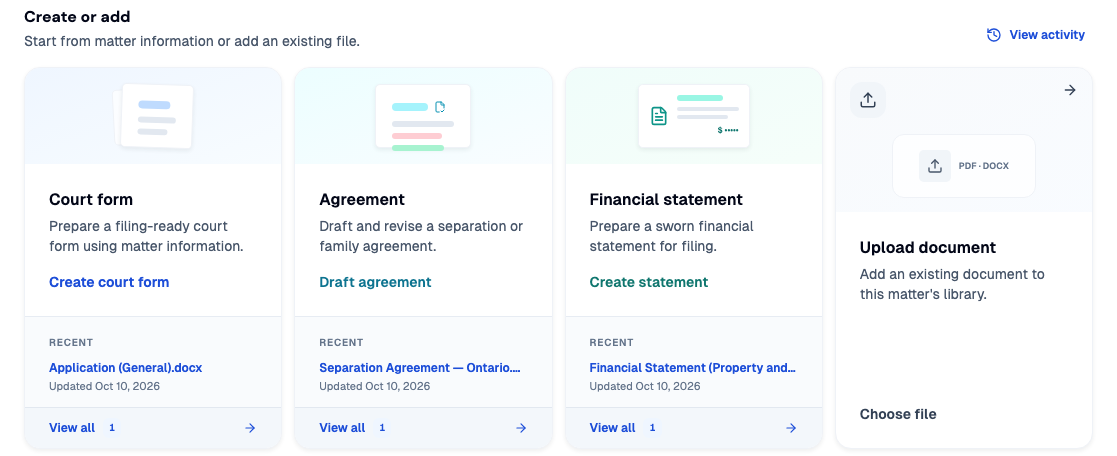
- Open the client file for the matter you are working on.
- Select Documents & Forms in the matter sidebar.
- On the Court form card, click Create court form.
You can also click Court Form under Documents & Forms in the sidebar, or click Create at the top of the sidebar and choose Court form. Each route opens the Create Court Form page for the current matter.
Selecting Jurisdiction and Court
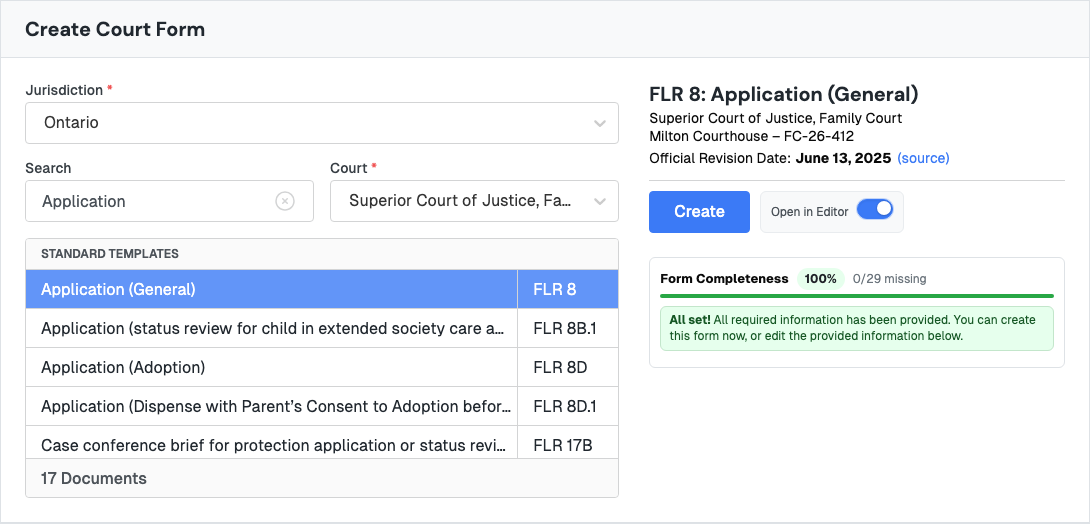
At the top of the Create Court Form page, choose the Jurisdiction and Court for your form. Divorcepath fills these in from the matter's court details where it can, so a matter set up in Ontario starts with Ontario selected. Divorcepath supports forms across Canadian provinces and territories. Change either dropdown to narrow the list to the forms used in your jurisdiction and court.
Browsing and Searching Form Templates
The Standard Templates list shows every form available for the selected jurisdiction and court, with the form name and form number. The total number of matching forms appears at the bottom of the list. You can:
- Browse the list of forms by name and form number.
- Search by form name, number, or keyword to quickly locate the form you need.
- Change the court to show only the forms used in that court.
The library includes hundreds of forms, so the search box is often the fastest way to find the right template.
Selecting and Generating the Form
To generate your form:
- Click the form in the template list.
- Review the form details on the right: the form number and name, the court, the court location and file number from the matter, and the official revision date, with a link to the source form.
- Check Form Completeness, which shows how much of the information the form needs is already in the client file.
- Click Create to generate the form. Leave Open in Editor switched on to open the new form in the Document Editor as soon as it is ready.
Divorcepath automatically populates the form with data from the client profile, including party names, addresses, lawyers, children's information, financial details, and other relevant data. This eliminates the need for manual data entry and reduces the risk of errors.
Completing Missing Information with the Form Wizard
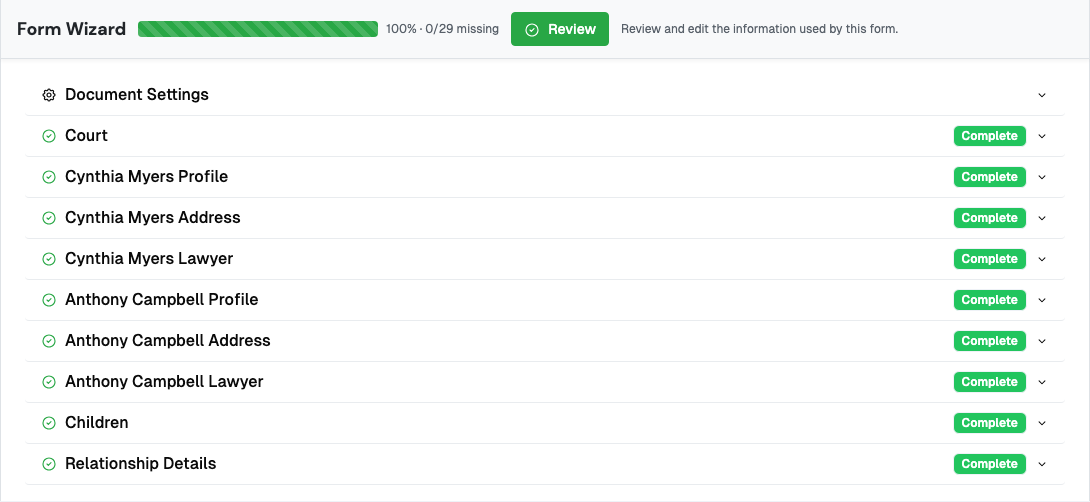
Below the form details, the Form Wizard lists the information the selected form uses, grouped into sections such as Court, each party's profile, address and lawyer, Children, and Relationship Details. Each section is marked Complete or shows how many fields are missing. Click Start to work through the missing fields, or Review to check the information when nothing is missing. Information you enter here is saved to the client file, so it is available for every form you create for the matter.
Reviewing and Customising the Document
After the form is generated, review the auto-populated content to ensure accuracy. In the Document Editor you can:
- Edit the form directly in your browser.
- Use the Document Data panel to review the field values that were mapped from the client profile and find each one in the form.
- Use the Review Draft panel to see drafting checks for the form, where they are available.
Opening or Downloading the Form
Once your form has been generated, you have several options:
- Open in the editor — click the form's name in the document library to open it in the Divorcepath Document Editor for further editing and review.
- Download DOCX — download the form as a Word document to edit in Microsoft Word or another word processor.
- Download PDF — download the form as a PDF for filing or sharing.
The generated form is saved to the matter's document library on the Documents & Forms page, where you can access it at any time.
