Once you have finished editing a document in Divorcepath, you can export it in several formats, create copies, save version snapshots, and share it with other professionals. This article covers all of the options available for getting your documents out of the editor and into the hands of the people who need them.
Exporting as PDF
To export a document as a PDF:
- Open the document in the Document Editor.
- Click the Export PDF button in the toolbar or file menu.
- The PDF will be generated and downloaded to your computer.
PDF export produces a high-fidelity version of the document that preserves formatting, page layout, headers, footers, and tables exactly as they appear in the editor. PDF is the preferred format for filing documents with the court or sending finalised documents to clients.
Exporting as DOCX
To download the document as a DOCX file:
- Open the document in the Document Editor.
- Click the Download or Export DOCX option.
- The DOCX file will be downloaded to your computer.
DOCX export is useful when you need to share the document with someone who will make further edits in Microsoft Word or another word processor, or when you need to send the document to opposing counsel in an editable format.
Save As
The Save As feature allows you to create a copy of the current document with a new name:
- Open the document in the Document Editor.
- Select Save As from the file menu.
- Enter a new name for the document copy.
- Click Save to create the copy.
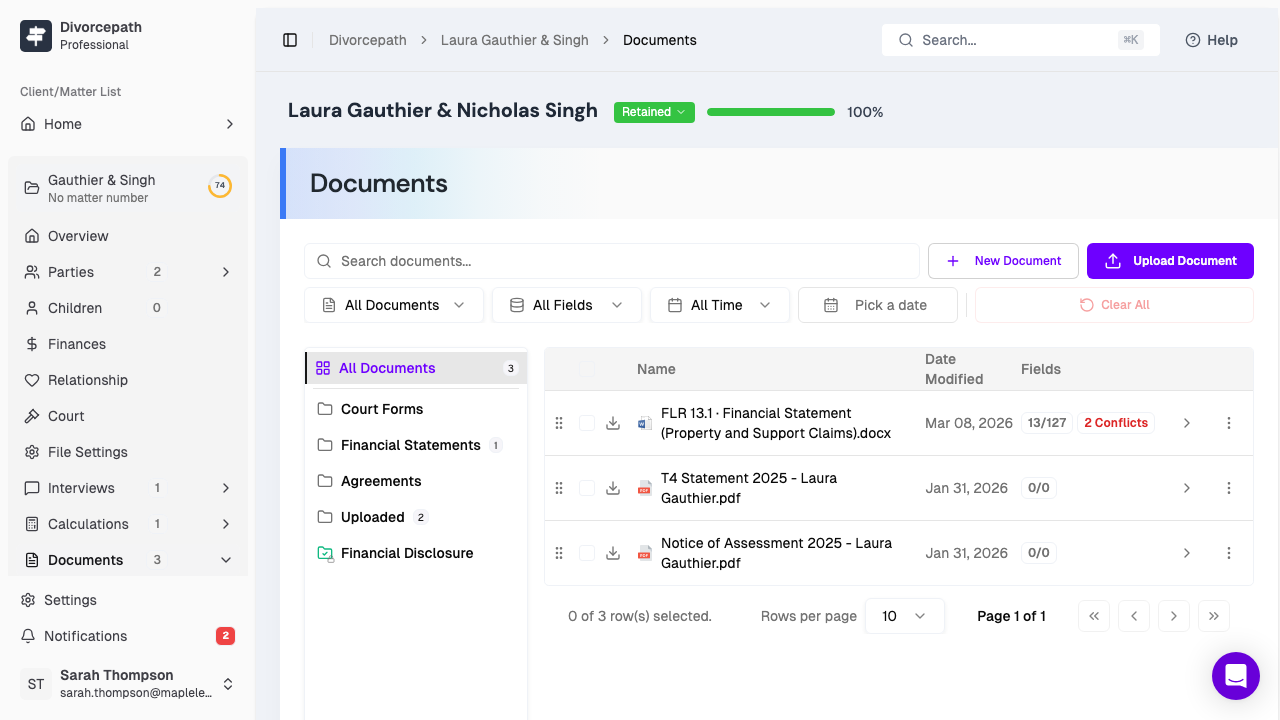
The original document is preserved unchanged, and the new copy is added to the client file's Documents tab. This is useful for creating alternative drafts, preserving a version before making significant changes, or preparing documents for different scenarios.
Document Snapshots
Document snapshots allow you to save a version of the document at a specific point in time. Unlike auto-save, which continuously saves your latest changes, snapshots create a deliberate checkpoint that you can return to later.
To create a snapshot:
- Open the document in the Document Editor.
- Open the History panel on the right side of the editor.
- Click Save Snapshot to capture the current state of the document.
You can view and restore previous snapshots from the History panel at any time. Snapshots are useful for tracking the evolution of a document over the course of a matter.
Sharing Documents
Documents within a client file are accessible to all team members who have access to that file. To share a document with another professional:
- Ensure the team member has access to the client file (see the client file sharing settings).
- The team member can then navigate to the Documents tab and open the document directly.
- For sharing with people outside your organisation, export the document as a PDF or DOCX and send it via your preferred communication method.
Document Edit Locks
To prevent conflicts when multiple team members are working on the same document, Divorcepath uses edit locks. When one user opens a document in the editor, a lock is placed on that document to prevent other users from making concurrent edits. Other team members will see a notification that the document is currently being edited and by whom. Once the editing user closes the document, the lock is released and other team members can edit it.
Edit locks help ensure that changes are not accidentally overwritten and that the document remains in a consistent state.
