The Divorcepath Document Editor includes specialised panels for managing document data, calculations, and sections. These panels are accessible from the right side of the editor and provide powerful tools for working with the structured data in your legal documents.
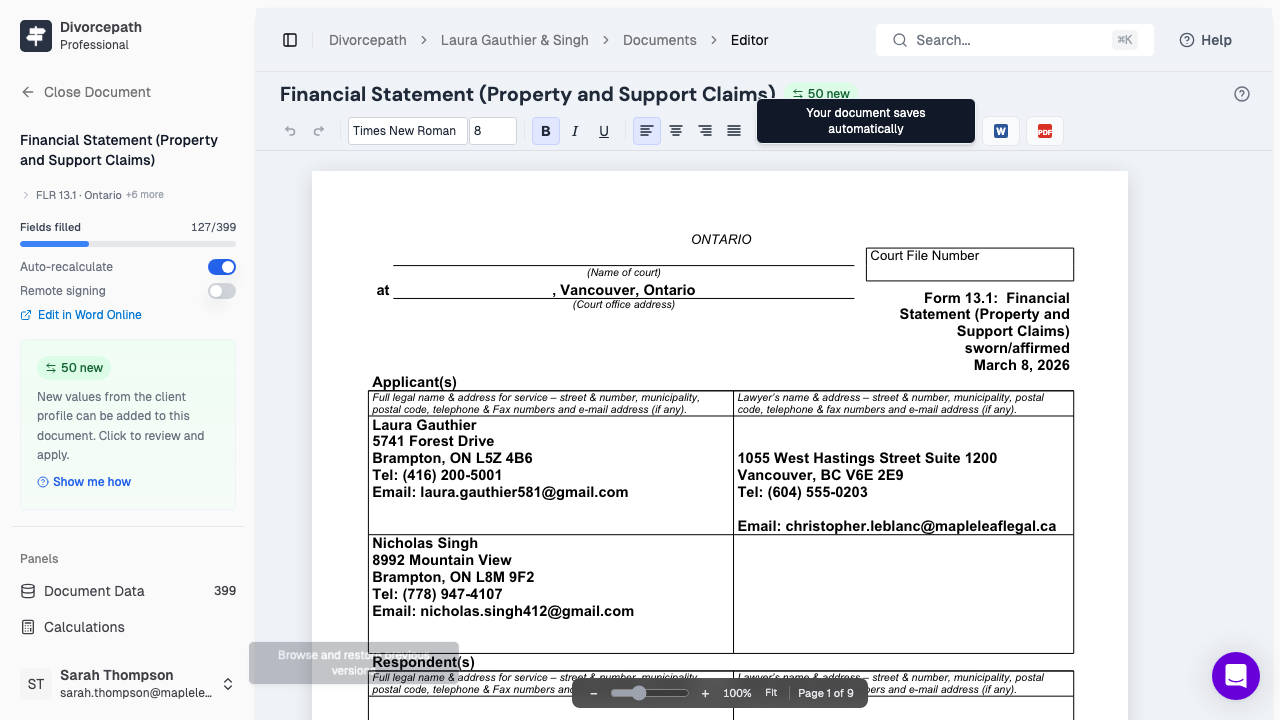
Data Panel
The Data panel displays all content controls and fields within the document. Content controls are structured fields that hold specific pieces of information, such as a party's name, an address, or a financial amount. The Data panel shows:
- A list of all content controls in the document, organised by section or region.
- The current value of each field.
- The data path that connects each field to the corresponding information in the client profile.
Field Mapping
Field mapping is the process by which data from the client profile is connected to specific fields in the document. When a document is generated, Divorcepath automatically maps client data to the appropriate content controls in the template. This means that information such as party names, financial figures, and dates is filled in without manual entry.
In the Data panel, you can see which client data field is mapped to each content control. This is helpful for understanding where the data in your document is coming from and for verifying that the correct information has been populated.
Editing Field Values
If you need to change a value that was auto-populated, you can edit it in two ways:
- Edit in the document — click directly on the field in the document canvas and type the new value.
- Edit in the Data panel — locate the field in the Data panel and update the value there. The change will be reflected in the document immediately.
Note that editing a field value in the document changes it only in that document. It does not update the underlying client profile data. To update the source data, make changes in the client profile directly.
Calculations Panel
The Calculations panel manages automatic calculations within the document. This is particularly useful for financial statements and other forms that include computed values. The panel displays:
- All calculated fields in the document, such as subtotals, category totals, and grand totals.
- The formula or calculation type used for each field (for example, column sums or cross-region sums).
- The current computed value of each calculation.
How Calculations Update
Calculations in the document update automatically when the underlying data changes. For example, if you modify an expense amount in a financial statement, the subtotal for that category and the overall total will be recalculated to reflect the new value. This ensures that your totals always remain accurate as you make edits.
You can use the Calculations panel to review all calculated values at a glance and confirm that the numbers in your document are correct before exporting or filing.
Sections Panel
The Sections panel allows you to control which sections of the document are visible. Many legal document templates include optional sections that may or may not apply to a particular matter. With the Sections panel, you can:
- Show a section to include it in the document.
- Hide a section to exclude it from the document without deleting it.
Hidden sections are not included when the document is exported or printed, but they remain part of the document template. You can show a hidden section at any time if circumstances change and it becomes relevant.
This feature is especially useful for separation agreements, where different clauses may apply depending on whether the parties have children, whether there is spousal support, or whether specific property arrangements are needed.
